 FanYun扇韵
Why it feels different
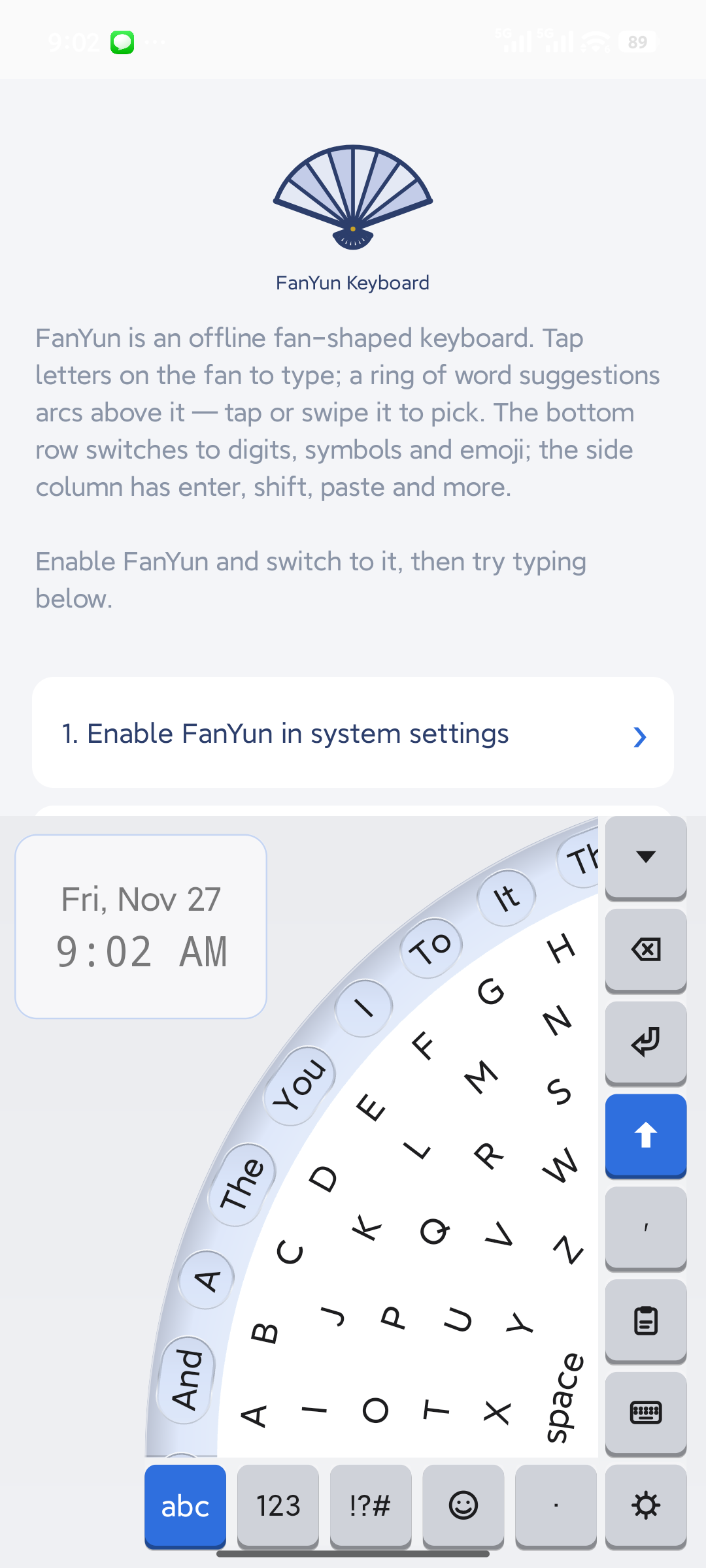
Laid out on the arc your thumb already draws. Keys, suggestions and paging stay on that same curve.
Single-thumb typing
The fan occupies the corner under your thumb. You reach every letter without stretching across the screen. Double-tap the empty side to mirror the layout, and the choice is remembered.
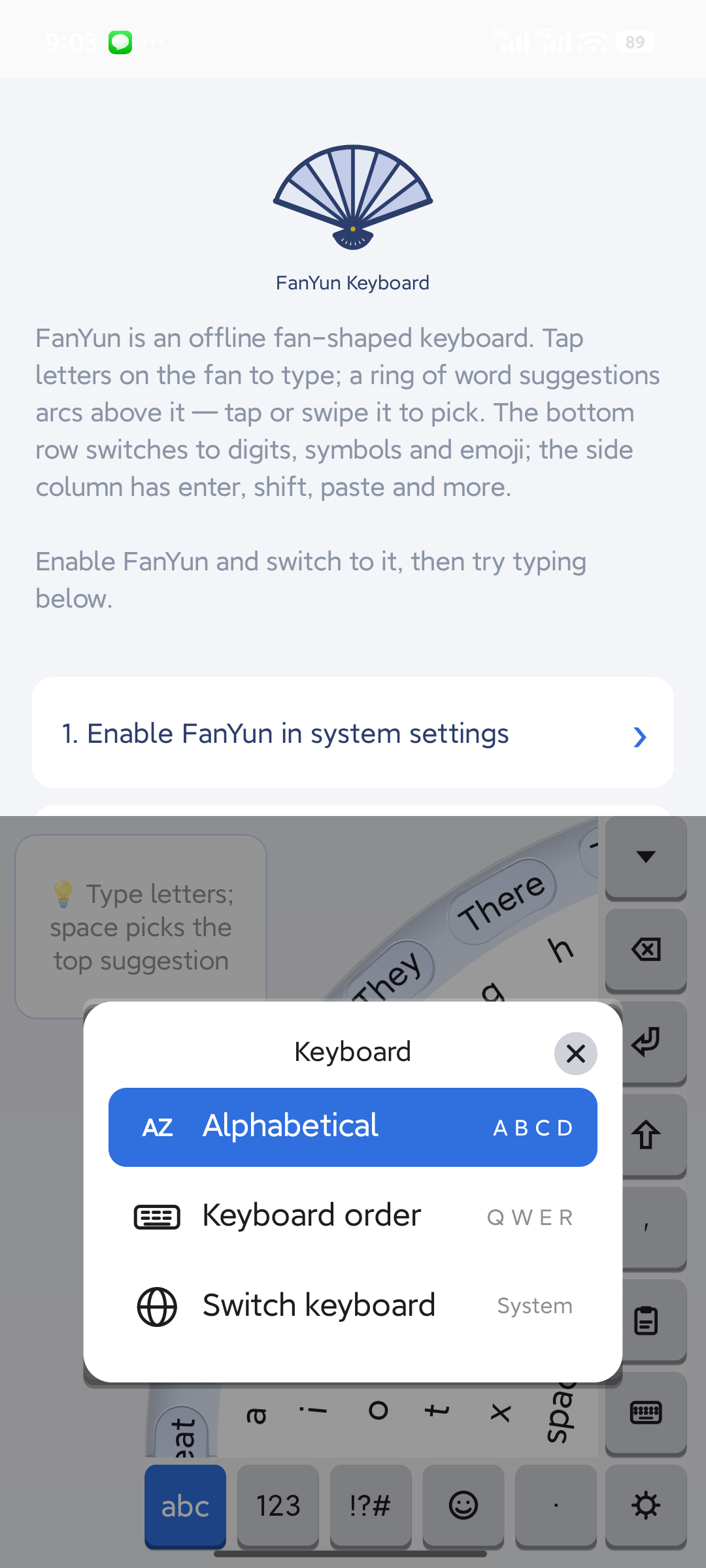
A letter order you know
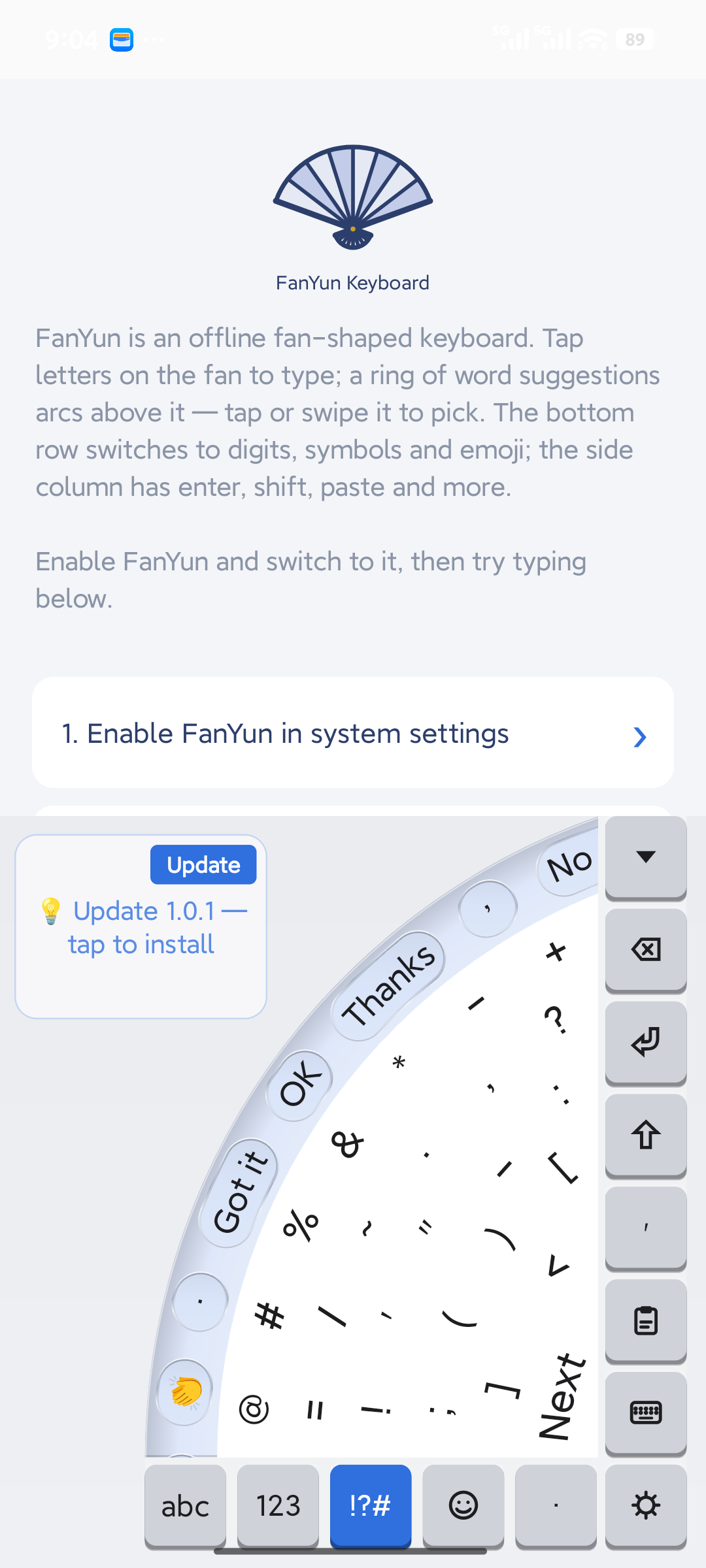
The fan can follow A–Z or QWERTY. Switch any time from the letter-order card. The bottom row opens digits, symbols and emoji.
A ring of suggestions
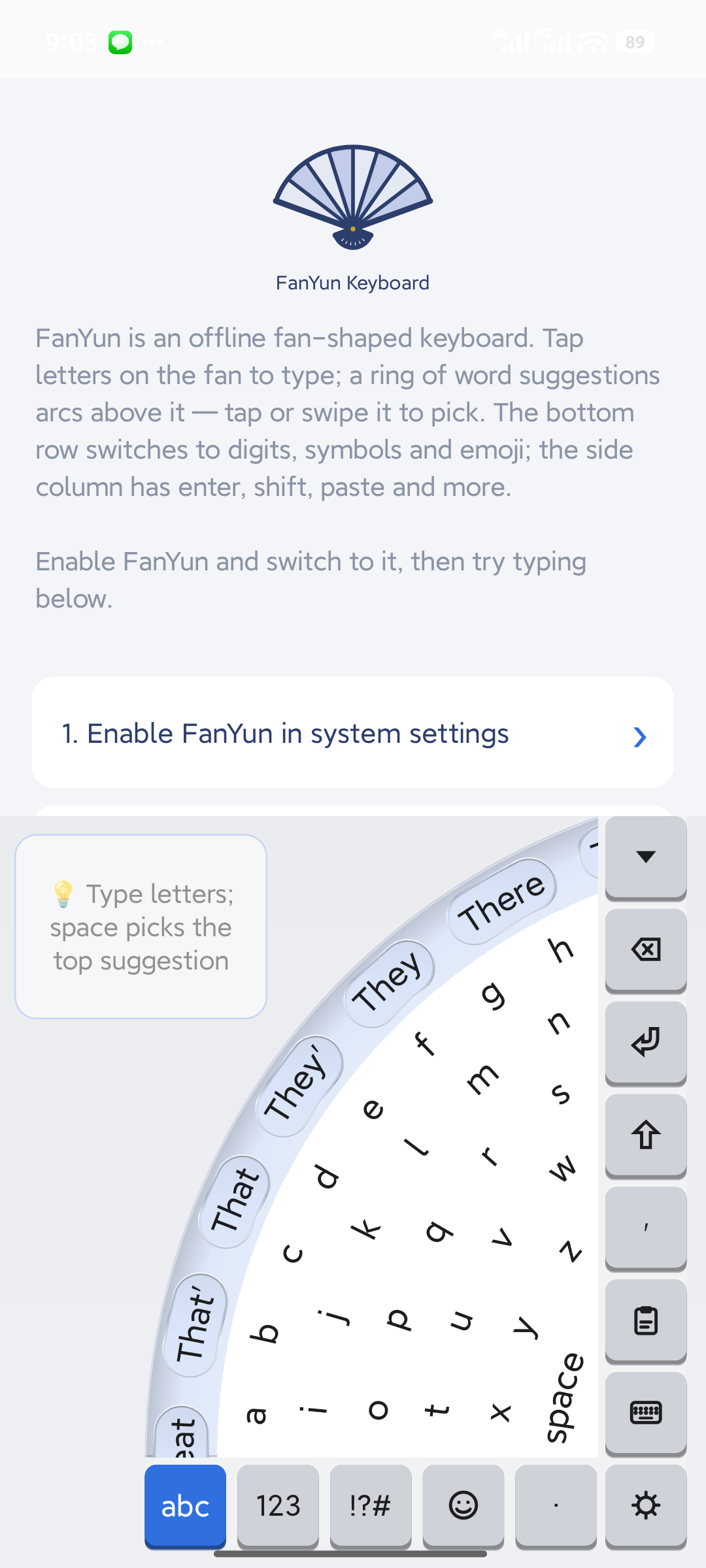
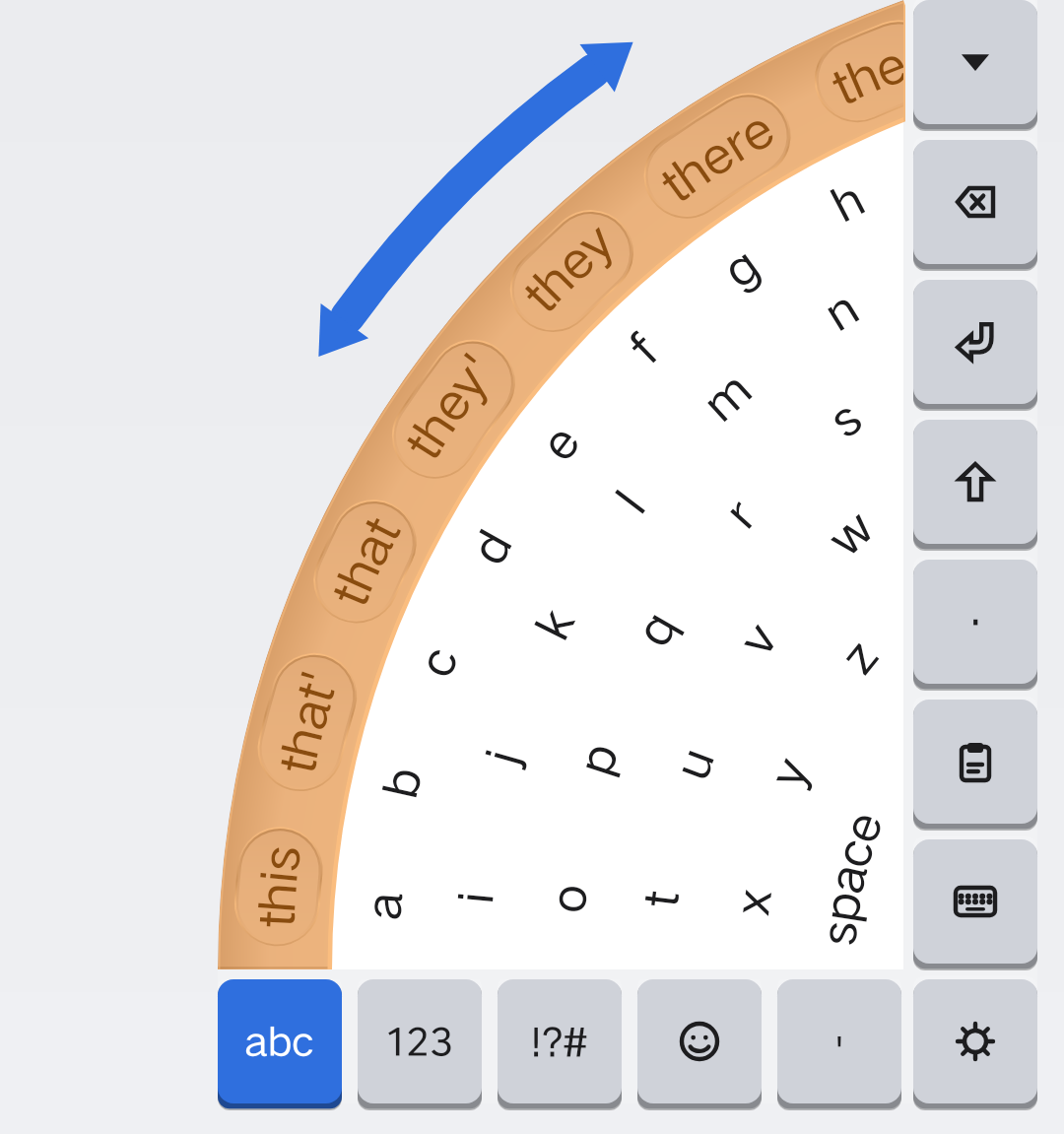
Likely words sit in the middle of the arc; the rest spread toward both ends. Drag along the ring to cycle through them, tap to insert, or press space for the top pick. Words you use often drift toward the center. That learning stays on the phone.
Side keys stay put
Hide, backspace, enter, shift, paste and settings sit in a column beside the fan, along the height your thumb already travels.
Size and place
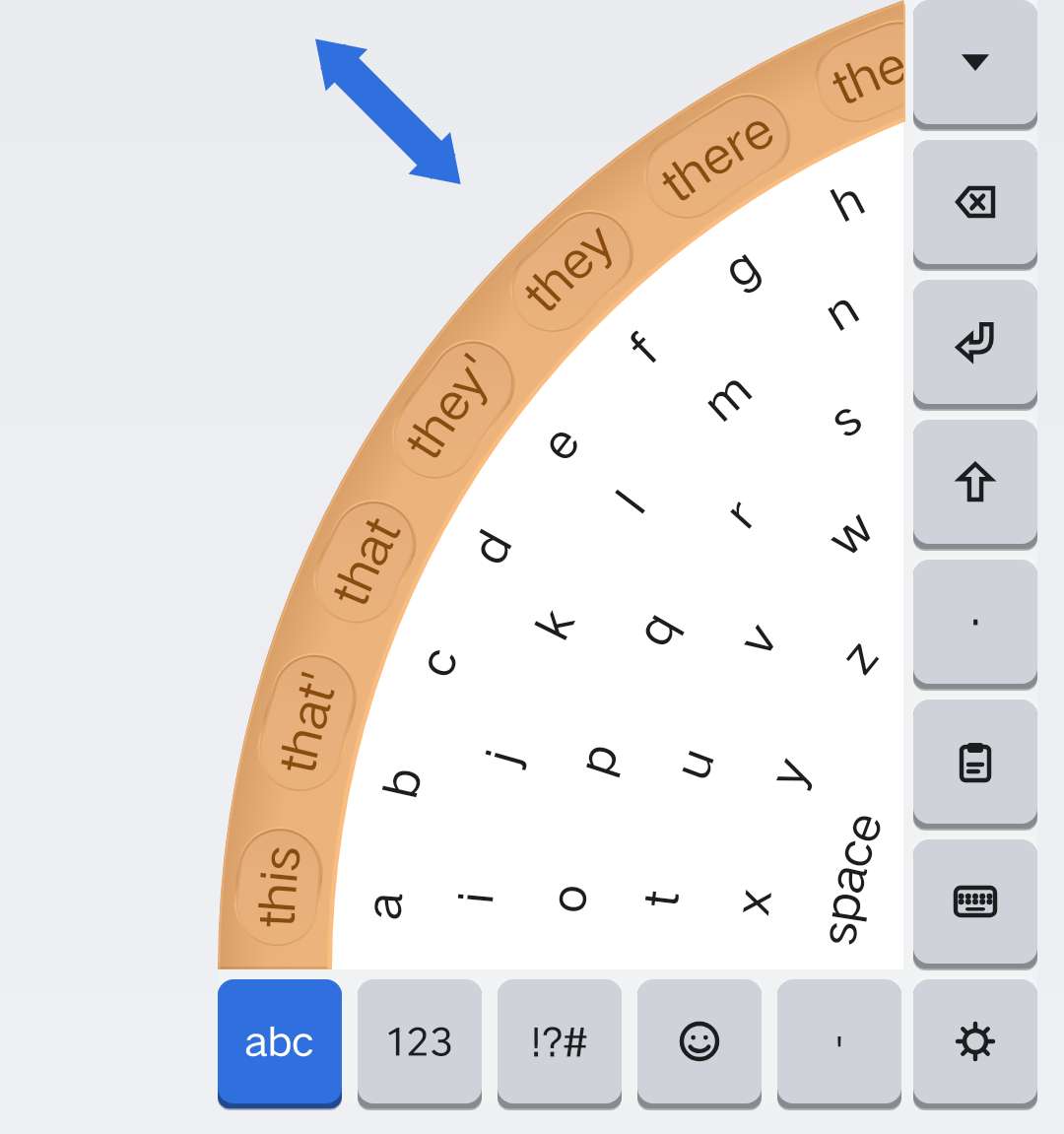
Hold the outer ring and drag outward to grow the keyboard, inward to shrink it. Hold anywhere else and drag to move it; it can sit flush with the bottom edge. In landscape, the two fans open and close together.
Typing stays on the device
Letters and words are processed on the phone and are not uploaded. There is no account and no third-party analytics. The app connects when it checks for updates. Optional promotions turn off under Settings → Appearance → Ads.
On a phone
English edition, portrait. Swipe this row sideways on a narrow screen.
How to type
Turn FanYun on in system settings, then tap letters and pick words from the ring.
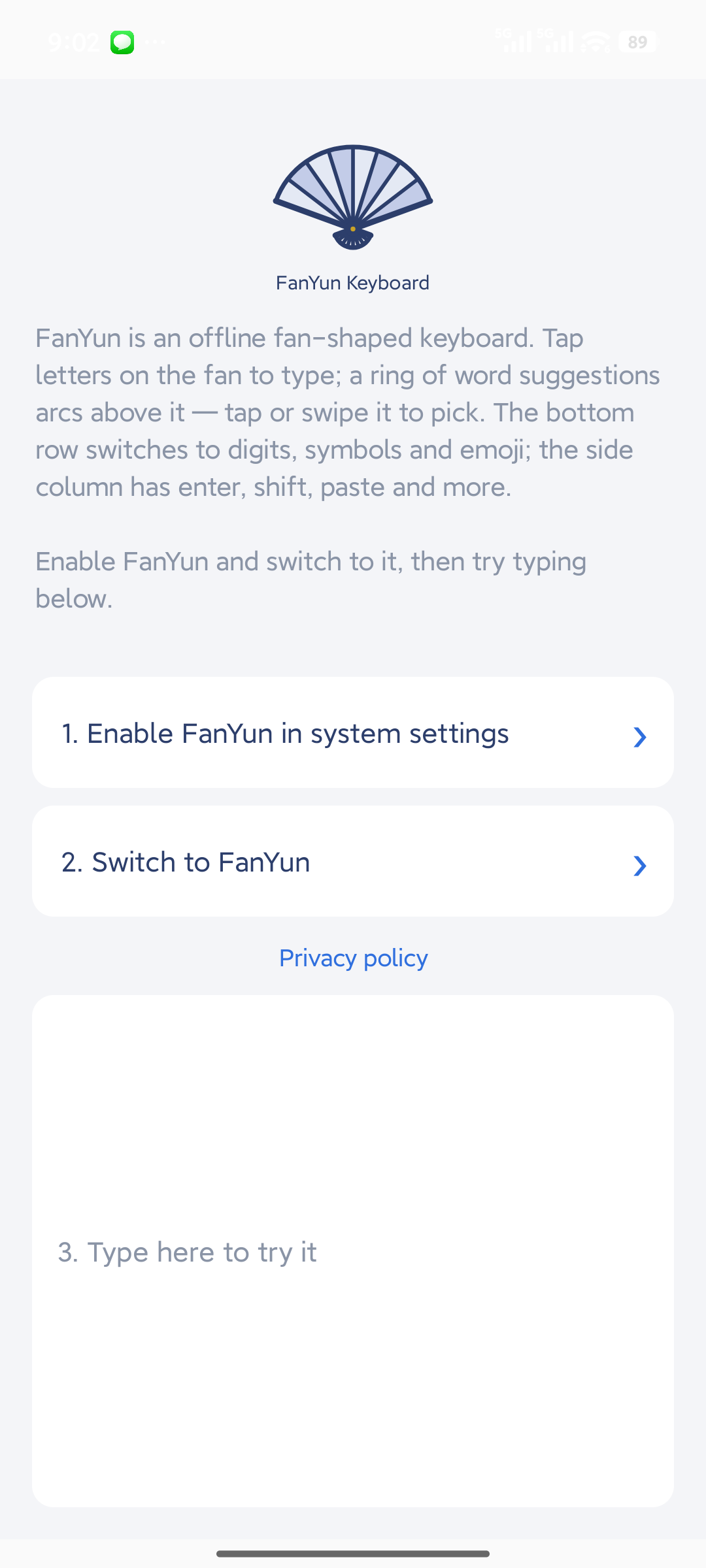
Open FanYun and tap “Enable FanYun in system settings”. Turn it on in the system keyboard list.
Back on the home screen, tap “Switch to FanYun”. Later, use the system keyboard switcher from any text field.
Letters arc out from the corner. The bottom row swaps among letters, digits, symbols and emoji.
Suggestions curve along the rim, the likeliest word in the middle. Tap one, or press space for the first. Before you type, the ring lists words that often follow the text at the cursor.
With your thumb
Scroll the ring
Press the ring and drag along the arc to cycle every suggestion. Lift on the word you want.
Swipe between pages
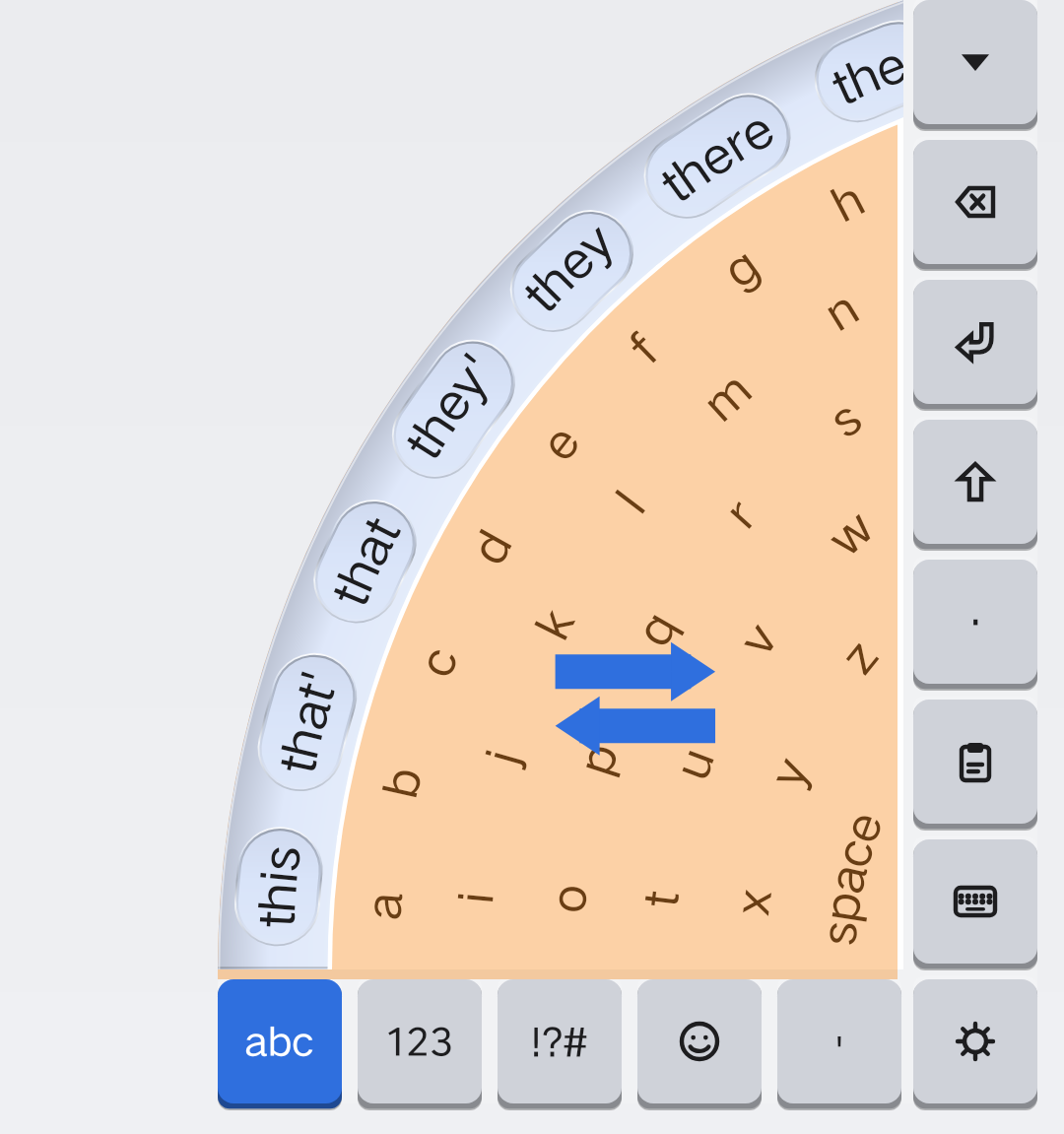
Swipe left or right on the fan to change pages. Symbol, digit and emoji panels turn the same way.
Hold the ring to scale
Hold the outermost ring and drag along the radius. Outward grows the keyboard; inward shrinks it.
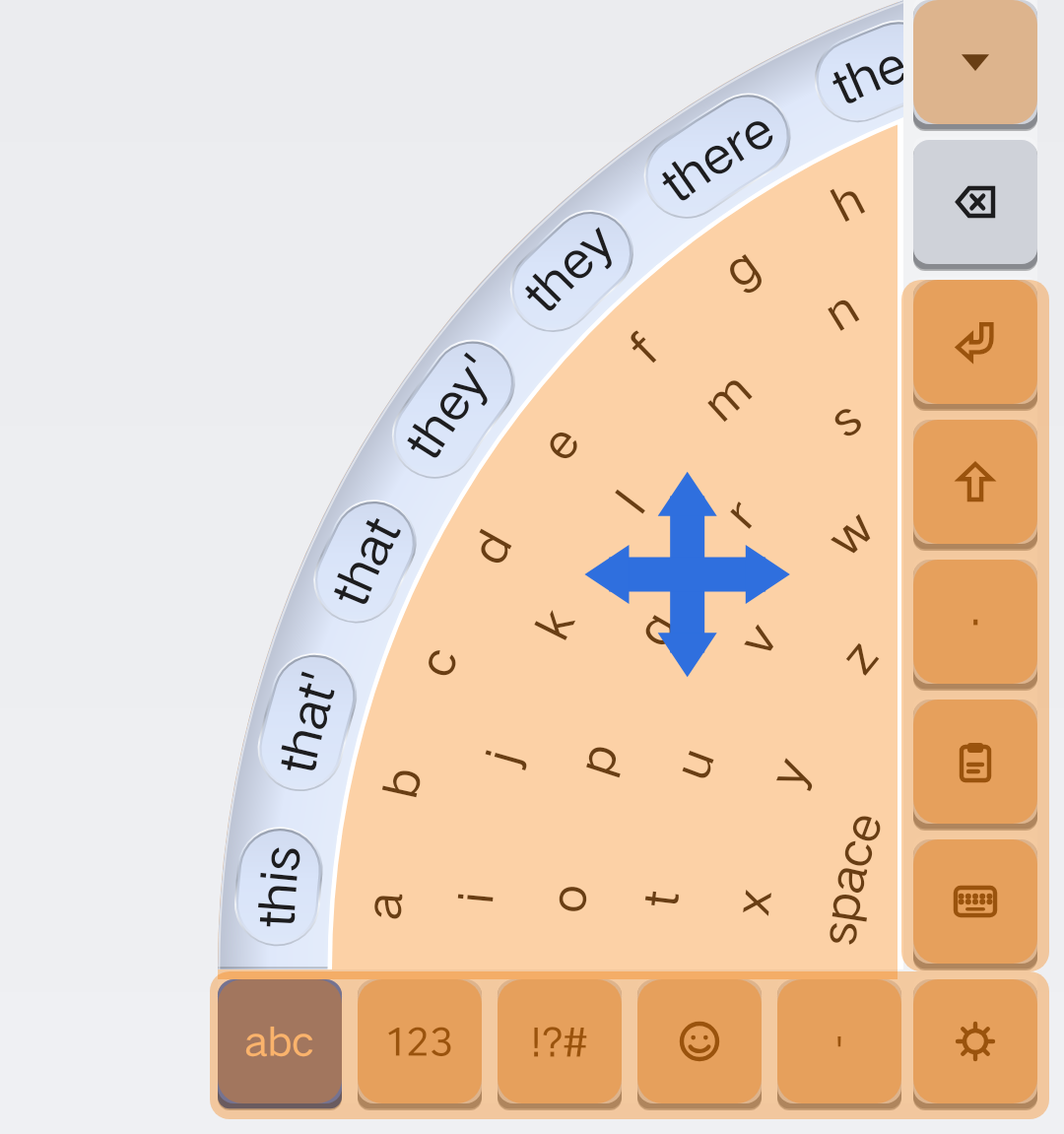
Hold to move
Hold anywhere except the ring — fan keys, hub, bottom row or side column — and drag. The keyboard can rest flush on the bottom edge.
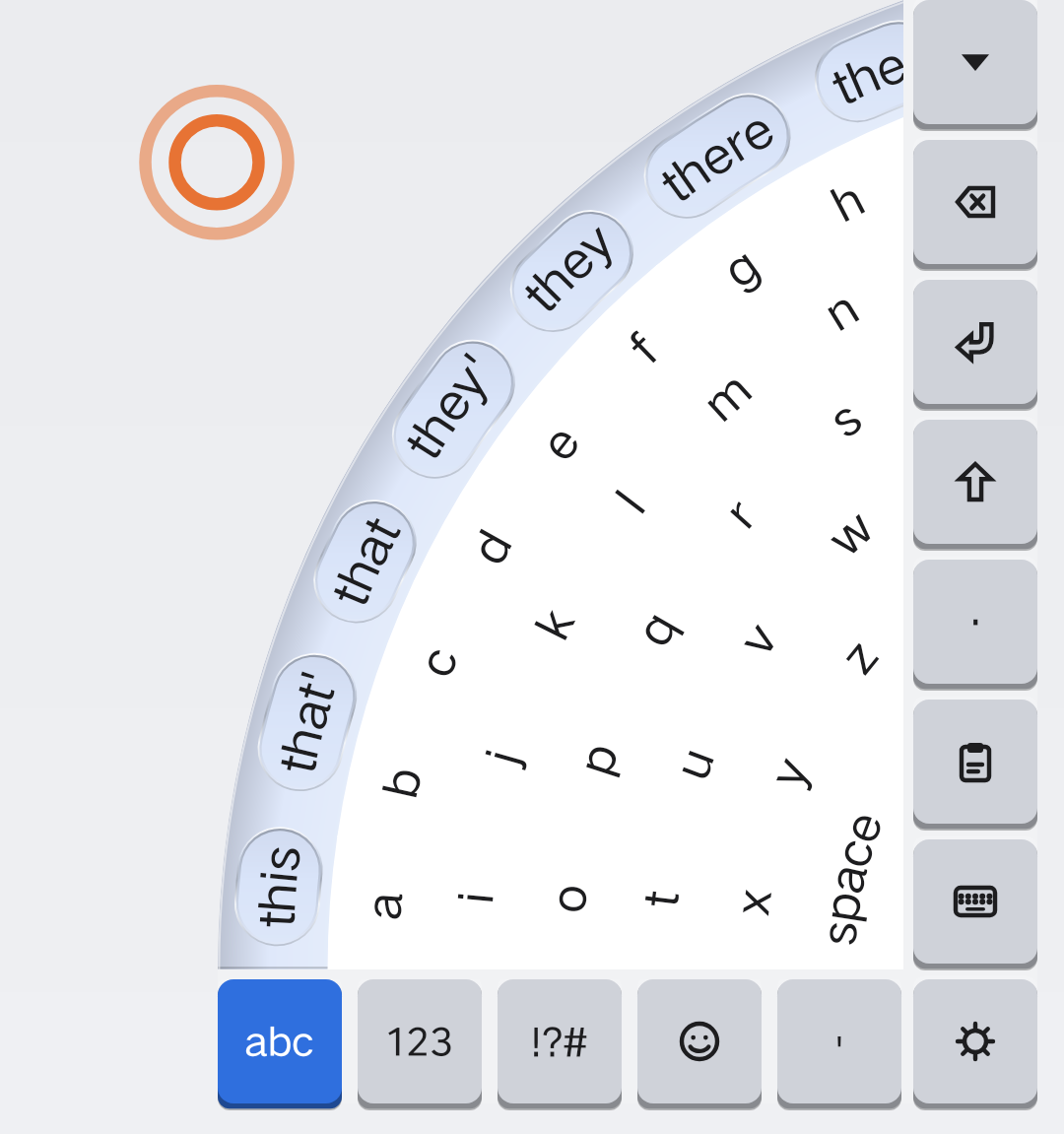
Double-tap to swap hands
Double-tap the empty side of the keyboard to switch between left- and right-handed layouts.
Download
Version 1.0.1, for Android 7.0 and later.
English FanYun Keyboard · v1.0.1
Download APK (~18 MB)- Download the APK in your browser.
- Open the file and allow install from this source when Android asks.
- Open FanYun and finish Enable, then Switch.
 Scan to open
the release page